
VS Code (Cline Example)
VS Code integration guide for Tokaify
Why this guide uses Cline as the example
VS Code itself is only the editor. The actual model requests are sent by extensions. To make this guide concrete and easy to follow, it uses Cline as the example because it supports OpenAI-compatible providers directly.
If you are using similar extensions such as Roo Code or Continue, the same mapping still applies: the important fields are Provider, Base URL, API Key, and Model.
Step 1: Create a key in Tokaify
- Open Tokaify and sign in.
- Go to Token Management.
- Click
Add Tokento create a new token. - Click
Copy Secretto get the fullsk-...value.
Also keep these two fixed values in mind:
Base URL: https://api.tokaify.com/v1
Provider: OpenAI Compatible
Step 2: Parameter mapping
| Extension field | Value | Notes |
|---|---|---|
API Provider | OpenAI Compatible | Some extensions may show this as OpenAI-compatible |
Base URL / OpenAI Base URL / Endpoint | https://api.tokaify.com/v1 | /v1 is required |
API Key | sk-... | Use the full secret |
Model | Select a model available to your account | Do not enter a model your account cannot access |
Step 3: Configure it in VS Code
Start with:
- VS Code
- Extensions Marketplace
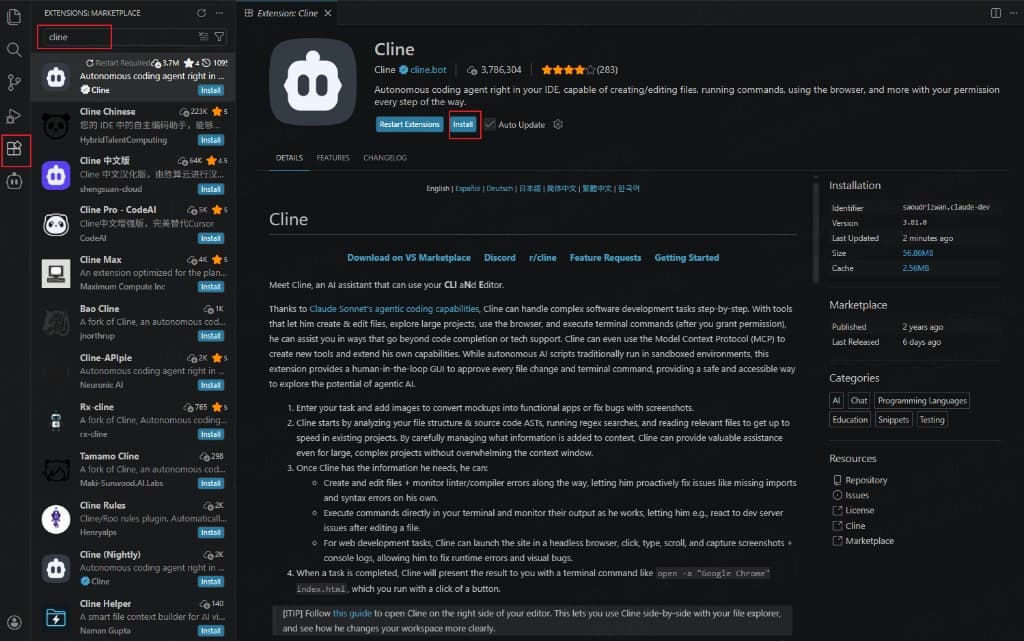
- Search for and install
Cline - After installation, open the Cline panel from the sidebar
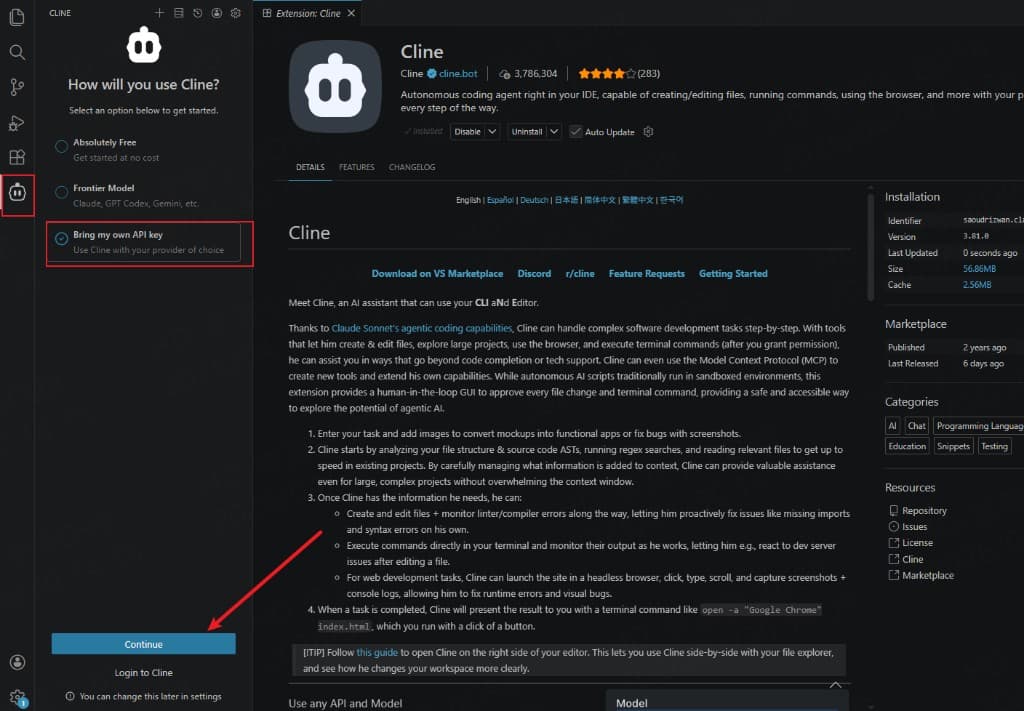
When you open Cline for the first time, choose Bring my own API key, then click Continue.
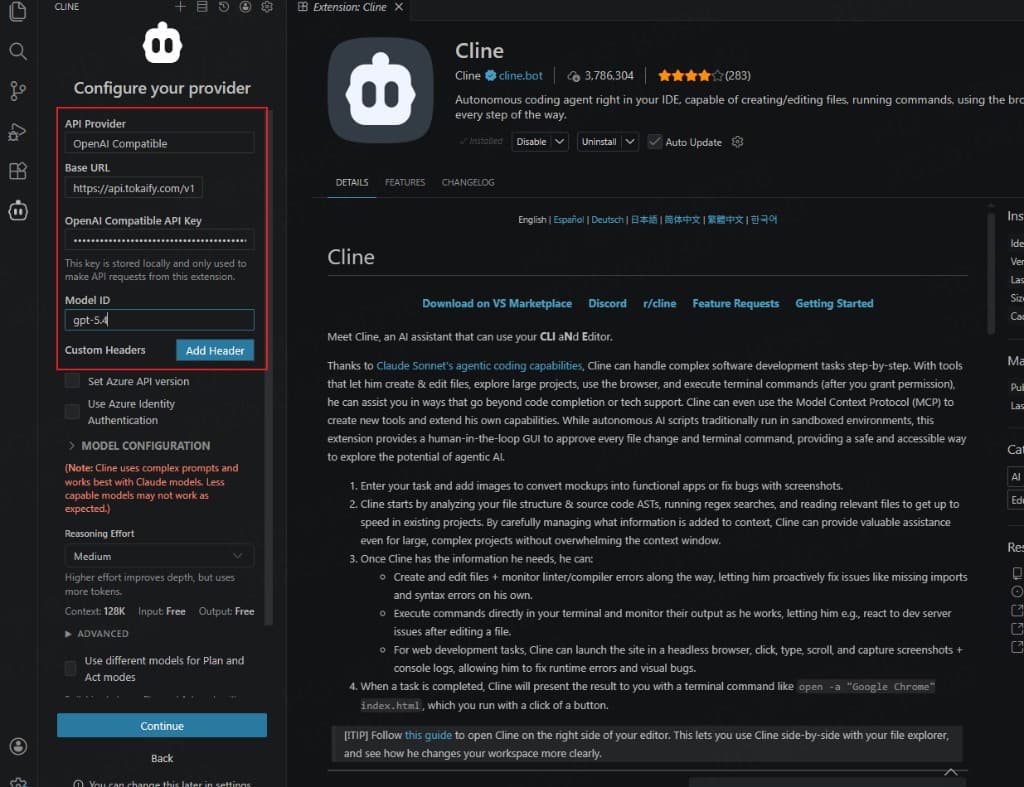
Fill in Cline's common fields
| Cline field | Value |
|---|---|
API Provider | OpenAI Compatible |
Base URL | https://api.tokaify.com/v1 |
API Key | sk-your-full-secret |
Model | Select a model available to your account |
Recommended order:
- Set
API ProvidertoOpenAI Compatible - Enter
Base URL = https://api.tokaify.com/v1 - Paste the full
API Key - Choose the model
- If the extension provides buttons such as
Verify,Test, orSave, verify first and then save
If you are not using Cline
Other VS Code extensions that support OpenAI-compatible APIs usually follow the same mapping:
| Generic field name | Value |
|---|---|
Provider / API Provider | OpenAI Compatible |
Base URL / API Base / Endpoint | https://api.tokaify.com/v1 |
API Key / OpenAI API Key | sk-... |
Model | Select a model available to your account |
Step 4: Verify the setup
After saving, send a simple prompt in the extension, for example:
First output "Tokaify is configured successfully", then list the top-level directories of the current project.If the extension returns a normal response, it is successfully calling the model through Tokaify.
FAQ
Why can Cline work while some other VS Code extensions may not
Different extensions support different provider types. As long as the extension supports an OpenAI-compatible API and lets you customize the Base URL, it can usually connect to Tokaify.
What should I do if I get 401 or 403
Check in this order:
- Whether the API key is complete and still includes the
sk-prefix - Whether the token is disabled, expired, or out of balance
- Whether the selected model is allowed by that token
- Whether an IP restriction is blocking the request
Should I use https://api.tokaify.com or https://api.tokaify.com/v1
For VS Code extensions, the model API endpoint should usually be:
https://api.tokaify.com/v1How is this guide?
Last updated on