
CC Switch
CC Switch integration guide for Tokaify
Keep these values handy
CC Switch is a desktop tool for managing and switching CLI configurations. When connecting Tokaify, the most common point of confusion is the endpoint difference between tools:
- Claude Code:
https://api.tokaify.com - Codex:
https://api.tokaify.com/v1 - API Key: the full
sk-...secret copied from the console
Step 1: Install CC Switch
Open the CC Switch project page, download the installer for your system, and complete the installation.
CC Switch supports Claude Code, Codex, Gemini CLI, OpenCode, OpenClaw, and more. This guide focuses on the Tokaify configuration for Claude Code and Codex.
Step 2: Create a key in Tokaify
- Sign in to Tokaify.
- Open Token Management.
- Click
Add Tokenand save it. - In the token list, click
Copy Secretto get the fullsk-...value.
Important
When using CC Switch, always use the full secret directly. Do not remove the sk- prefix manually.
Step 3: Add a provider
In the CC Switch main window, click + in the upper-right corner to open the Add New Provider page.

At the top, choose the tool type you want to configure:
- For Claude Code, choose
Claude - For Codex, choose
Codex
Then choose Custom Configuration under the preset provider options.
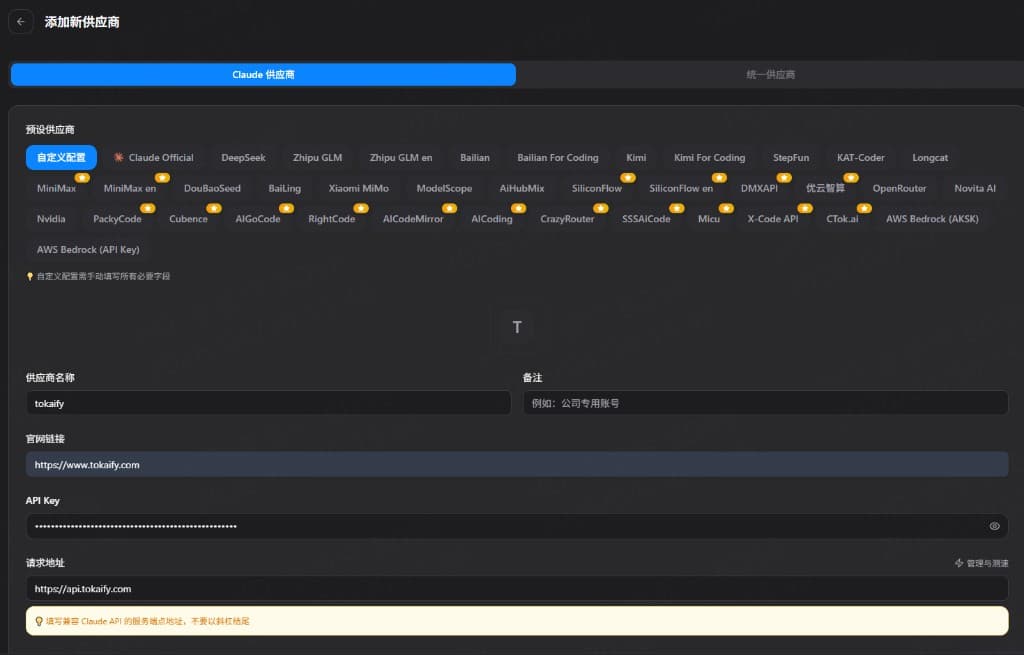
Step 4: Configure Claude Code
If you want CC Switch to manage Claude Code, use the following values:
| Field | Value | Notes |
|---|---|---|
| Provider Name | tokaify | Only affects how it appears inside CC Switch |
| Website | https://www.tokaify.com | Used as provider reference info |
| API Key | sk-... | Use the full secret |
| Request URL | https://api.tokaify.com | For Claude Code, use the root URL and do not add /v1 |
| API Input Format | Anthropic Messages (Native) | Choose the corresponding Claude option in CC Switch |
| Auth Field | ANTHROPIC_AUTH_TOKEN (default) | The default option is usually correct |
| Primary Model | For example claude-sonnet-4-6 | Replace with a model available to your account |
| Thinking Model | For example claude-sonnet-4-6 | Can match the primary model |
| Default Haiku Model | For example claude-sonnet-4-6 | Use an account-available model |
| Default Sonnet Model | For example claude-sonnet-4-6 | Use an account-available model |
| Default Opus Model | For example claude-opus-4-7 | Use an account-available model |
If CC Switch shows a Configuration JSON area, make sure it includes this:
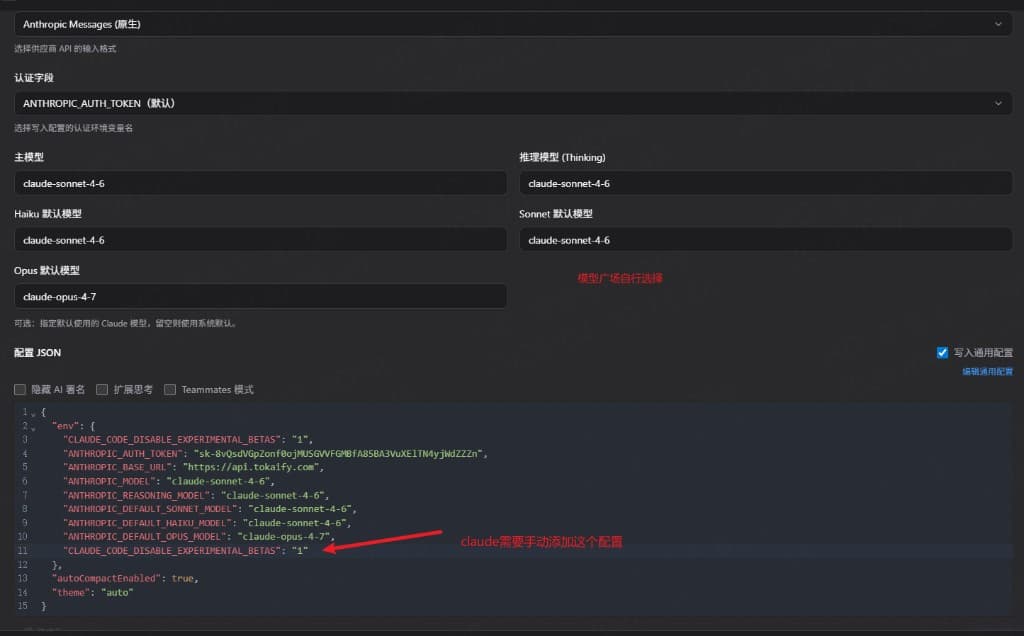
{
  "env": {
    "CLAUDE_CODE_DISABLE_EXPERIMENTAL_BETAS": "1"
  }
}
This disables Claude Code experimental betas, which helps avoid validation errors caused by extra fields like context_management in some versions.
Step 5: Configure Codex
If you want CC Switch to manage Codex, switch the tool type at the top to Codex before adding the provider.
| Field | Value | Notes |
|---|---|---|
| Provider Name | tokaify | Only affects CC Switch presentation |
| API Key | sk-... | Use the full secret |
| Request URL / Base URL | https://api.tokaify.com/v1 | Codex requires /v1 here |
| Model | For example gpt-5.4 | Replace with a model available to your account |
Codex must use a /v1 endpoint
Codex uses an OpenAI-compatible API. In CC Switch, the Codex request URL must be https://api.tokaify.com/v1. If you only enter https://api.tokaify.com, you may see empty model lists, 404 errors, or path mismatches.
Step 6: Save and switch
After saving the provider, return to the CC Switch main window:
- Choose the tool you want to switch, such as
ClaudeorCodex - Select the
tokaifyprovider you just added - Click switch or save so CC Switch writes the local configuration for that tool
- Close the current terminal, reopen it, and then launch the target CLI again
Step 7: Verify the setup
For Claude Code, start it and enter:
Reply with "Claude Code is connected to Tokaify", then list the top-level directories in the current project.For Codex, start it and enter:
Reply with "Codex is connected to Tokaify", then tell me the current model name.If the responses work normally, CC Switch has successfully switched the tool to Tokaify.
FAQ
Why do Claude Code and Codex use different endpoints
Claude Code uses Anthropic-style configuration, so ANTHROPIC_BASE_URL should use the root endpoint:
https://api.tokaify.comCodex uses an OpenAI-compatible API, so its Base URL needs the versioned path:
https://api.tokaify.com/v1What should I do if Codex returns 404
First confirm that the Codex request URL in CC Switch is exactly:
https://api.tokaify.com/v1If you only entered https://api.tokaify.com, add /v1, save again, and switch once more.
What should I do if I get 401 or 403
Check these items first:
- Whether the API key is the full
sk-...secret - Whether the token is disabled, expired, or out of balance
- Whether the current model is allowed by the token
- Whether an IP restriction is blocking the request
How is this guide?
Last updated on