
Cursor
Cursor integration guide explaining how to connect Cursor to Tokaify through the Claude Code for VS Code extension.
Keep these values handy
In Cursor, the recommended path is to connect Tokaify through the Claude Code for VS Code extension. This uses Claude Code's Anthropic-style setup, so the key values are:
ANTHROPIC_API_KEY: the fullsk-...secret copied from the consoleANTHROPIC_BASE_URL:https://api.tokaify.com- Model: a model that is enabled for your account and supported by Claude Code
Step 1: Create a key in Tokaify
- Sign in to Tokaify.
- Open Token Management.
- Click
Add Tokenand save it. - In the token list, click
Copy Secretto get the fullsk-...value.
If the same account is shared across multiple team members or projects, create separate tokens by project so future troubleshooting is easier.
Important
When connecting Claude Code, always use the full secret directly. Do not remove the sk- prefix manually.
Step 2: Install Claude Code locally
The Claude Code for VS Code extension uses the local Claude Code CLI on your machine, so install the CLI first.
Run this in PowerShell:
npm install -g @anthropic-ai/claude-codeRun this in your terminal:
npm install -g @anthropic-ai/claude-codeAfter installation, run the following command to confirm the CLI is available:
claude --versionStep 3: Configure Claude Code
You can configure Tokaify for Claude Code through settings.json or environment variables. On Windows, settings.json is usually the more stable option for use inside Cursor.
On Windows, the path is usually:
C:\Users\your-username\.claude\settings.jsonOn macOS / Linux / WSL, the path is usually:
~/.claude/settings.jsonAdd the following content and replace sk-your-token and the model names with values available in your account:
{
  "env": {
    "ANTHROPIC_API_KEY": "sk-your-token",
    "ANTHROPIC_BASE_URL": "https://api.tokaify.com",
    "ANTHROPIC_MODEL": "claude-sonnet-4-5",
    "ANTHROPIC_REASONING_MODEL": "claude-sonnet-4-5",
    "ANTHROPIC_DEFAULT_HAIKU_MODEL": "claude-sonnet-4-5",
    "ANTHROPIC_DEFAULT_SONNET_MODEL": "claude-sonnet-4-5",
    "ANTHROPIC_DEFAULT_OPUS_MODEL": "claude-sonnet-4-5",
    "CLAUDE_CODE_DISABLE_EXPERIMENTAL_BETAS": "1"
  },
  "includeCoAuthoredBy": false
}
Windows PowerShell:
setx ANTHROPIC_API_KEY "sk-your-token"
setx ANTHROPIC_BASE_URL "https://api.tokaify.com"
setx ANTHROPIC_MODEL "claude-sonnet-4-5"
setx CLAUDE_CODE_DISABLE_EXPERIMENTAL_BETAS "1"
macOS / Linux / WSL:
export ANTHROPIC_API_KEY="sk-your-token"
export ANTHROPIC_BASE_URL="https://api.tokaify.com"
export ANTHROPIC_MODEL="claude-sonnet-4-5"
export CLAUDE_CODE_DISABLE_EXPERIMENTAL_BETAS="1"
Do not add /v1 to Claude Code
Claude Code uses Anthropic-style endpoints, so ANTHROPIC_BASE_URL should be https://api.tokaify.com. Do not change it to https://api.tokaify.com/v1.
Step 4: Test it in the terminal first
After saving the configuration, close the current terminal, open a new one, and run:
claudeAfter launch, send a simple prompt such as:
Reply with "Claude Code is connected to Tokaify", then list the top-level files in the current directory.Test in an empty folder first
Claude Code reads context from the current working directory. For the first test, use an empty folder or a small project so you do not accidentally consume a large number of tokens.
If the CLI works normally, continue with the Cursor extension.
Step 5: Install the Claude Code extension in Cursor
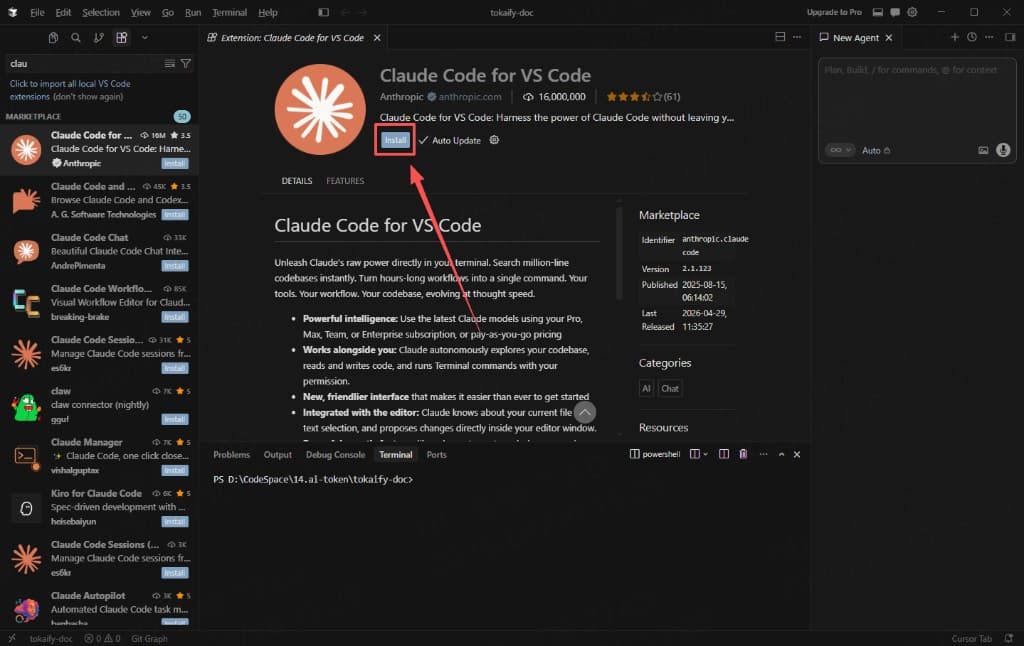
Open the Cursor extensions marketplace, search for Claude Code for VS Code, and install the official extension published by Anthropic.
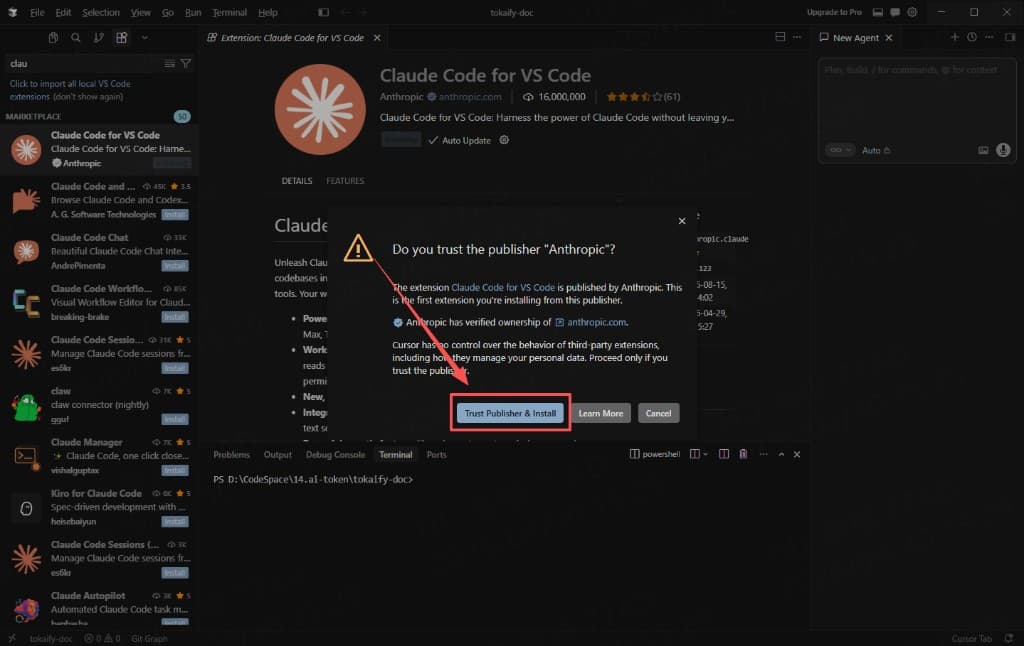
During first install, Cursor may ask whether you trust the publisher Anthropic. After confirming the publisher, click Trust Publisher & Install.
Step 6: Open the Claude Code panel
After installation, find the Claude Code icon in the left activity bar and open the Claude Code panel.
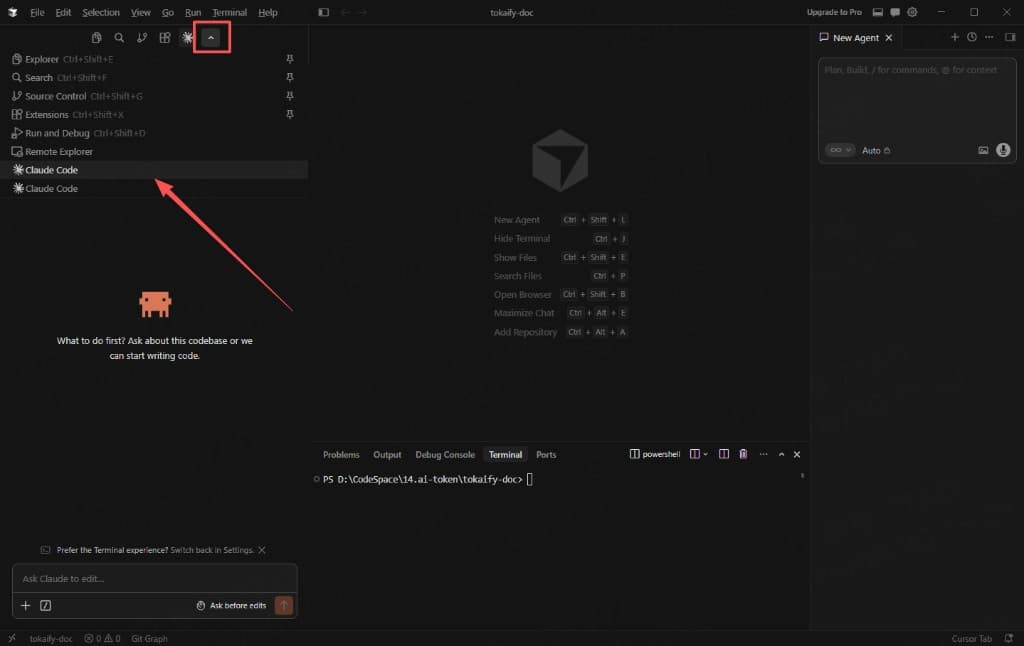
You can also open it from the Claude Code entry in the sidebar.
Step 7: Test it inside Cursor
In the Claude Code panel, enter a short prompt such as:
Please reply with "Cursor is connected to Tokaify".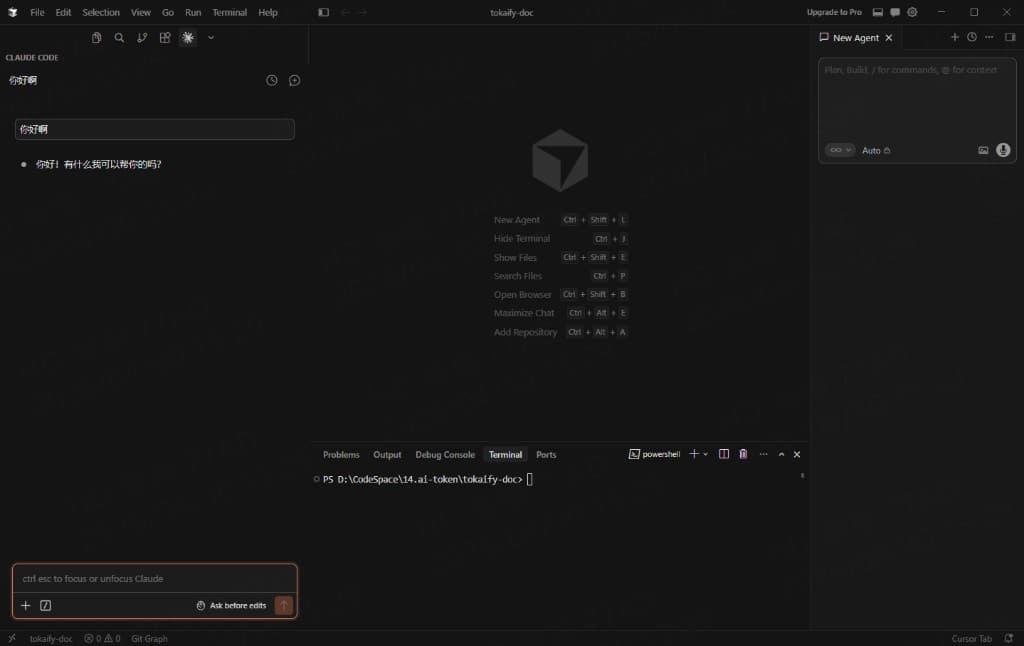
If the response comes back normally, Cursor is successfully using your Tokaify configuration through the Claude Code extension.
FAQ
Why not just set an OpenAI Base URL directly in Cursor Models
Cursor's built-in model settings can change by version, and they do not always fully support third-party OpenAI-compatible gateways. When you connect through Claude Code for VS Code, follow Claude Code's Anthropic-style configuration instead, which means ANTHROPIC_BASE_URL = https://api.tokaify.com.
Why doesn't ANTHROPIC_BASE_URL include /v1
Because Claude Code builds the Anthropic API paths itself. You only need the API root URL here, not /v1.
What should I do if I get 401 or 403
Check these items first:
- Whether the copied key is complete and still includes the
sk-prefix - Whether the token is disabled, expired, or out of balance
- Whether the configured model is allowed for that token
- Whether an IP restriction is blocking the request
What should I do if I see context_management: Extra inputs are not permitted
This usually means Claude Code experimental betas are sending extra fields. Make sure your configuration includes:
{
  "env": {
    "CLAUDE_CODE_DISABLE_EXPERIMENTAL_BETAS": "1"
  }
}
After saving, close Cursor and the terminal, reopen them, and test again.
How is this guide?
Last updated on